Two sides, one system

Always current. Always at your fingertips.

Managers get the console. Everyone else gets the reader.

The console

Managers, from any screen

  • Record every device
  • Write docs from blocks
  • Decide who sees what
  • Print the QR codes

The reader

Your team, phone in hand

  • Scan the code on the rack
  • Sign in once per shift
  • Read the right doc, right there
  • See only what their role allows

Part 1 · The console

Build it

Five steps. Empty system to QR codes.

Set up your venue

Split your venue into logical systems.

  • Create your systems
  • Set up your users
  • Create a landing page
app.avdocs.app/manage
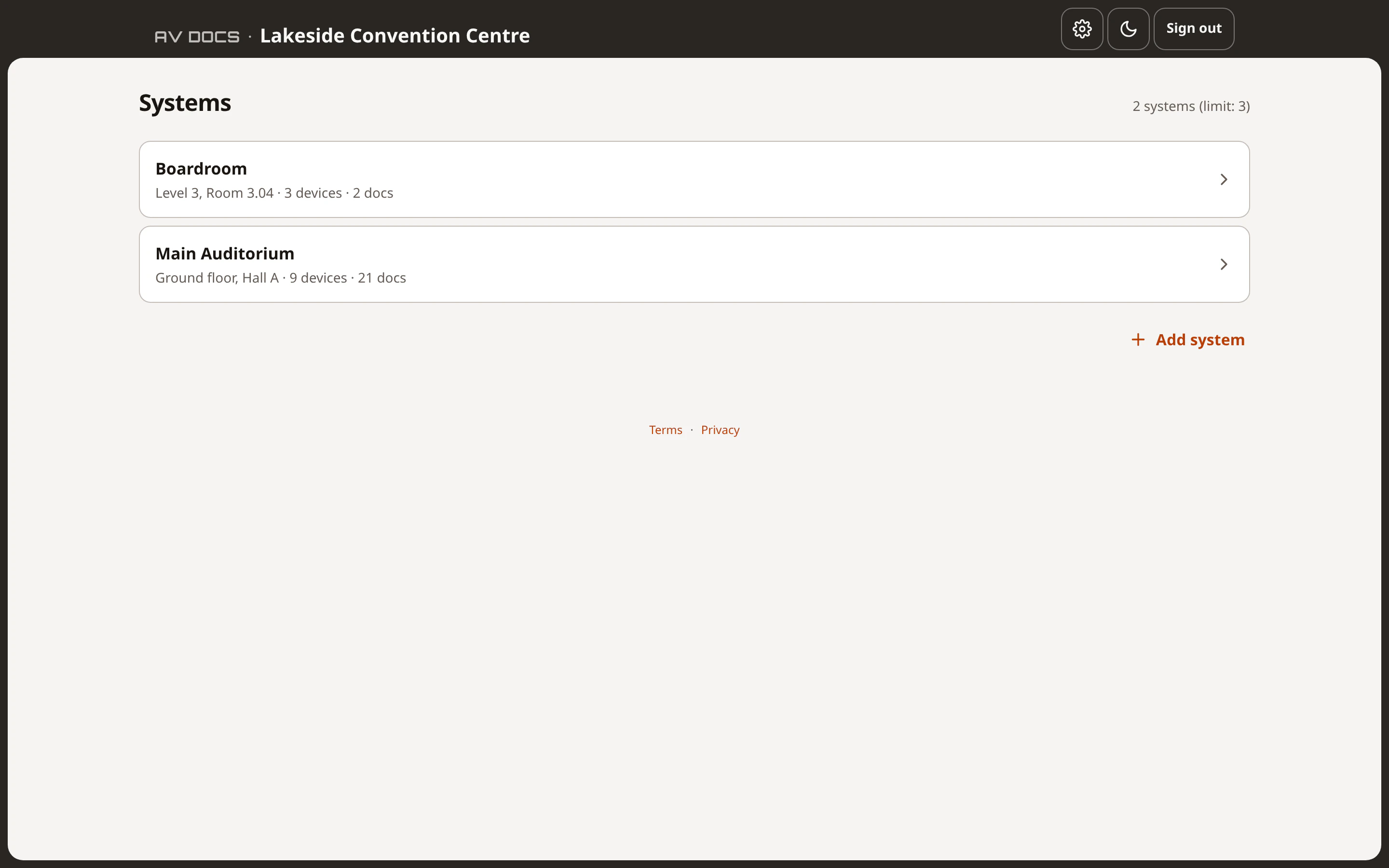
The manager console listing the venue's AV systems
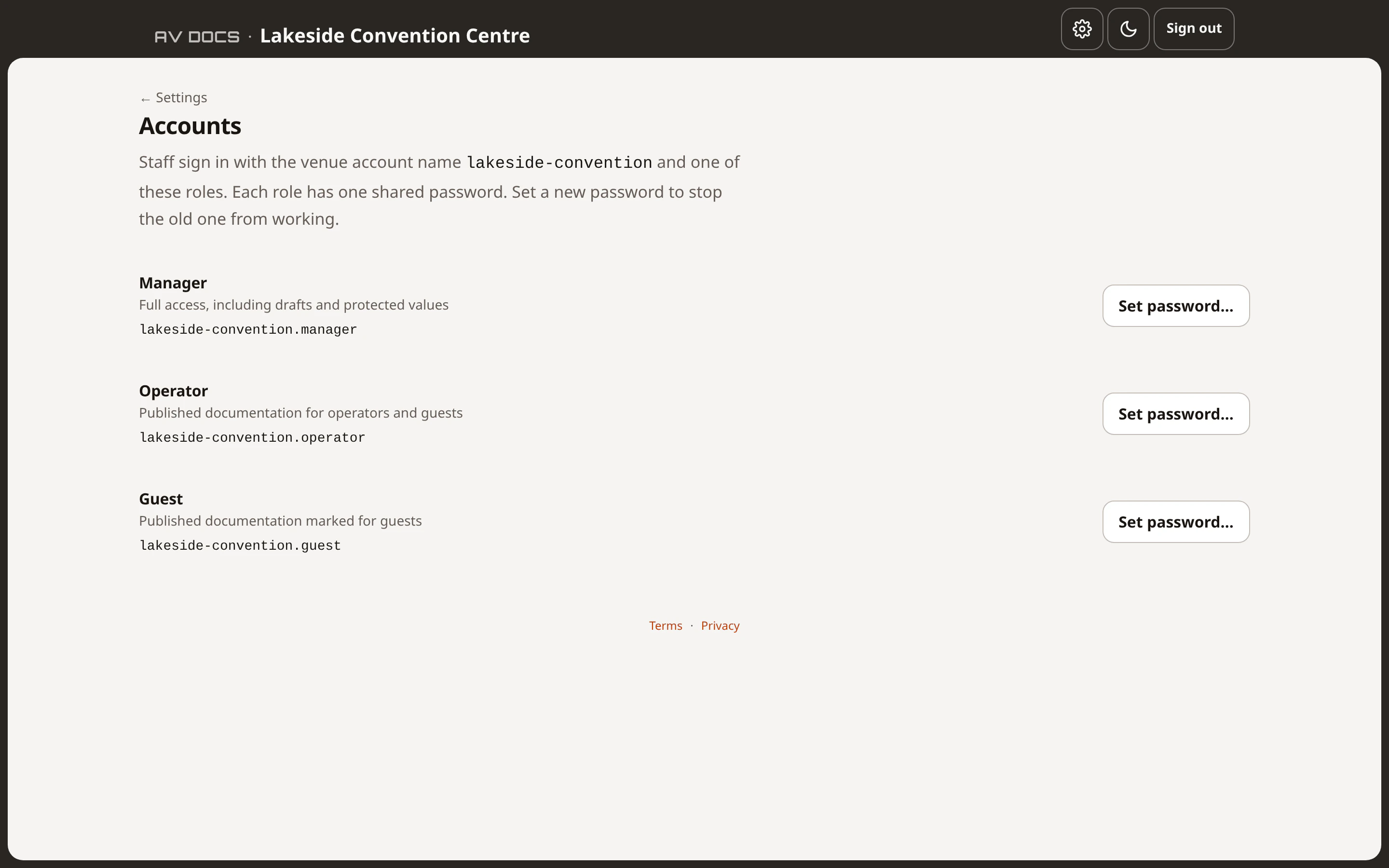
app.avdocs.app/manage/accounts
The three venue logins, one per access level
app.avdocs.app/lakeside-convention/boardroom/manage/landing
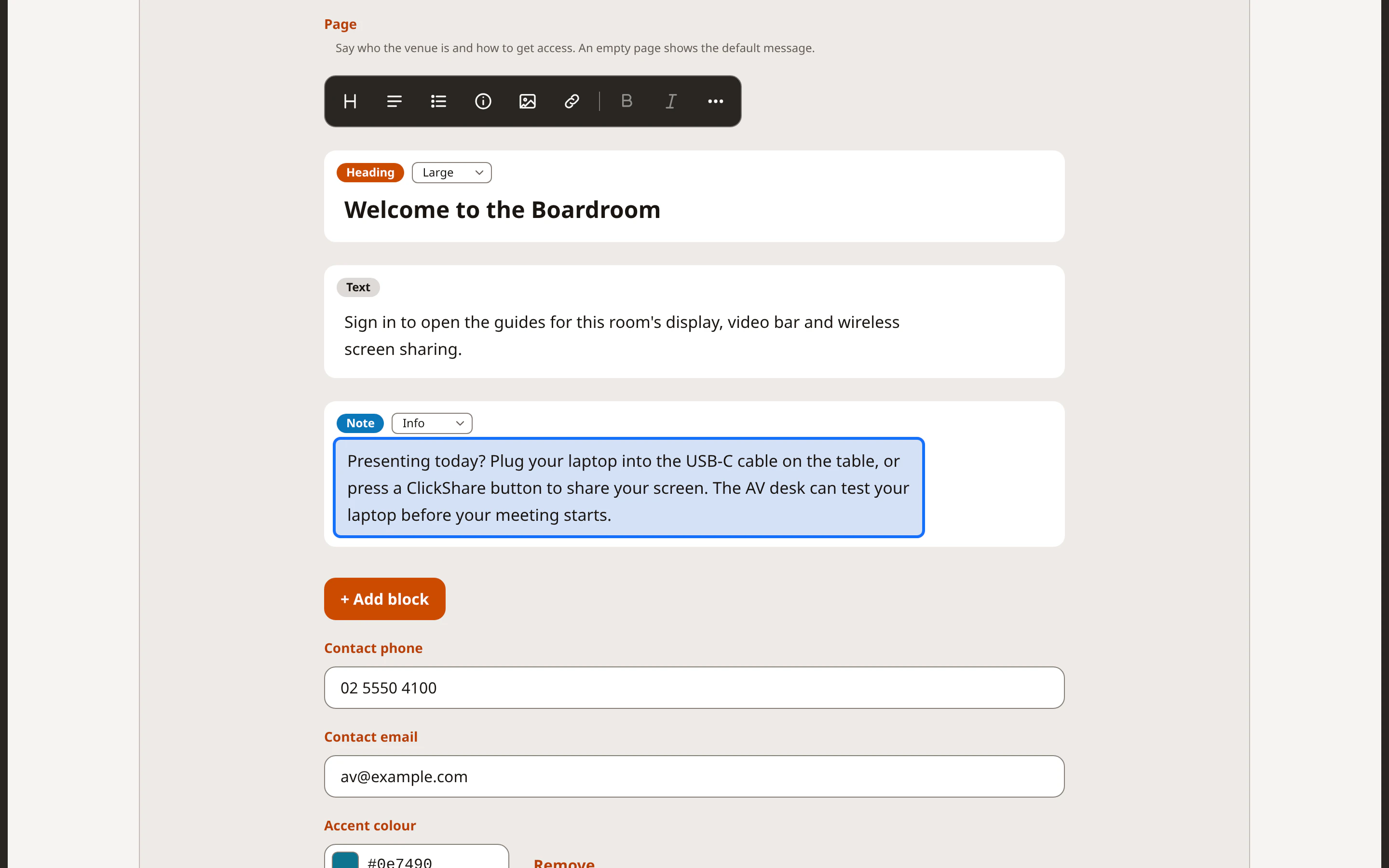
Editing a system's landing page: a welcome, a line of text, a note for presenters and the contact details

Record every device

Network, ports, passwords: all in one place.
  • Make, model, category, location
  • IP address, hostname, MAC, VLAN
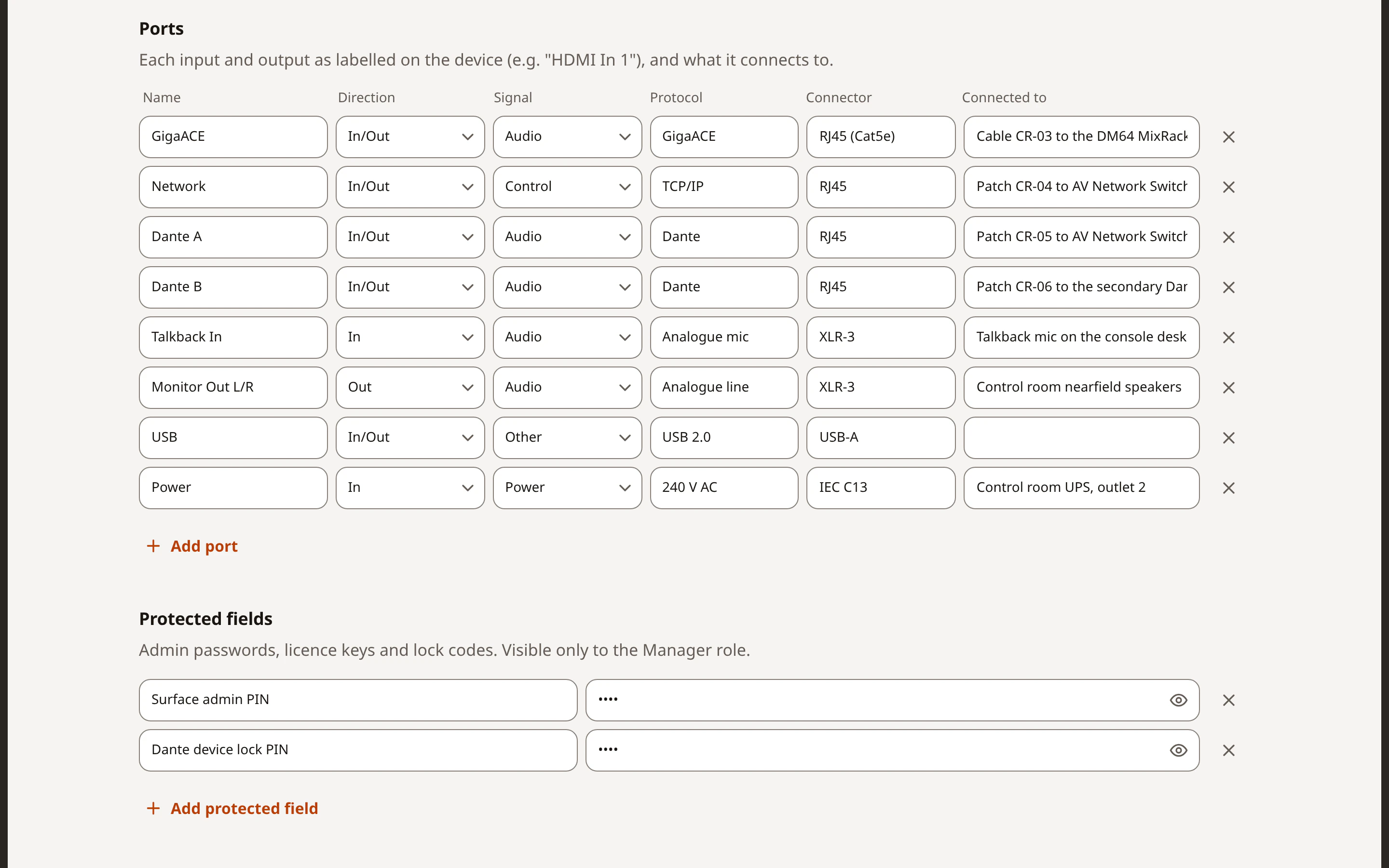
  • Every port, and what it plugs into
  • Passwords and PINs, for managers only
  • Its docs, one tap away
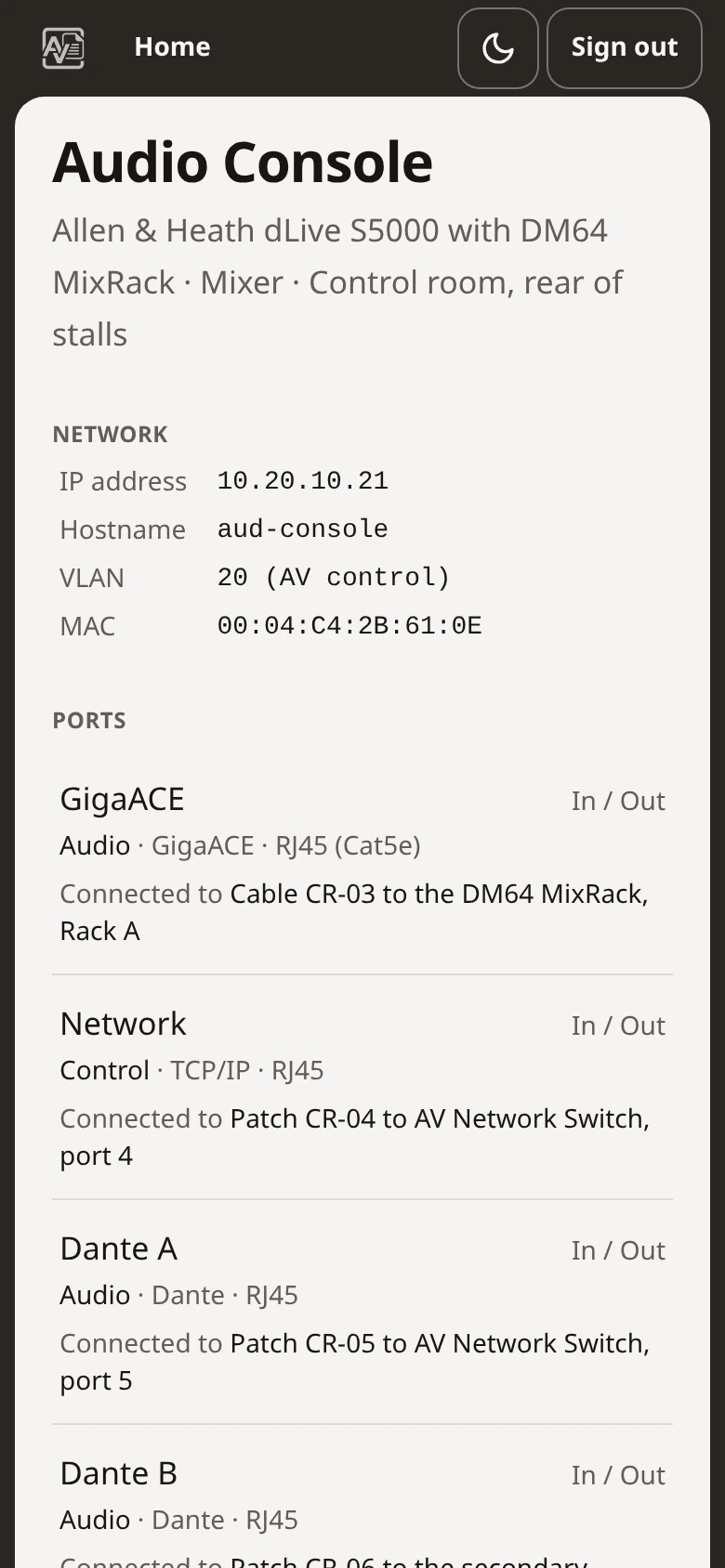
app.avdocs.app/lakeside-convention/main-auditorium/manage/devices/audio-console
A device page: each port and what it connects to, and the protected fields below
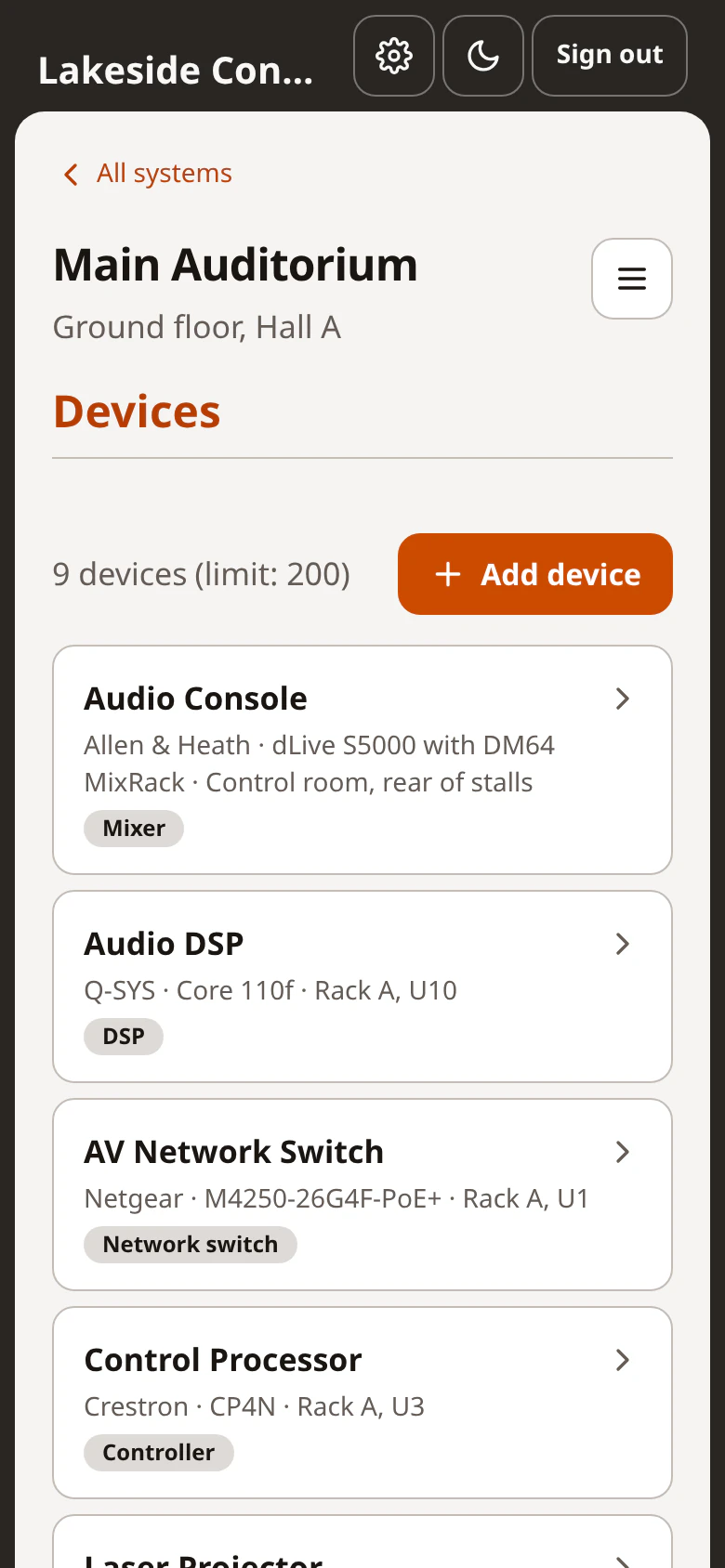
The system's device list in the manager console on a phone

Write the docs

Write clear, easy-to-read docs with the built-in editor.
  • Steps, notes, warnings, images, links
  • Start-up checklists, fault finding, how-tos
  • Link docs to devices, or to other docs
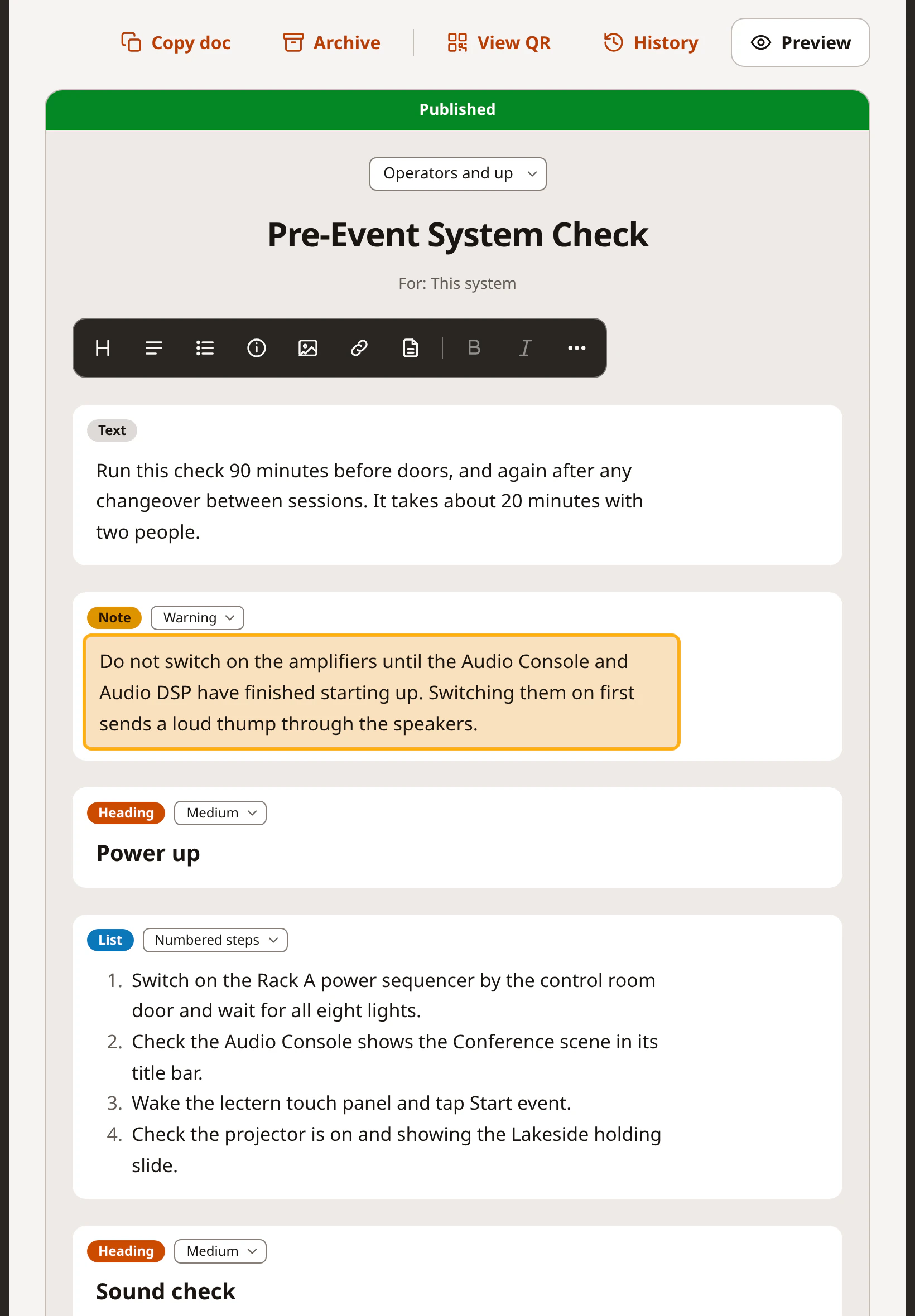
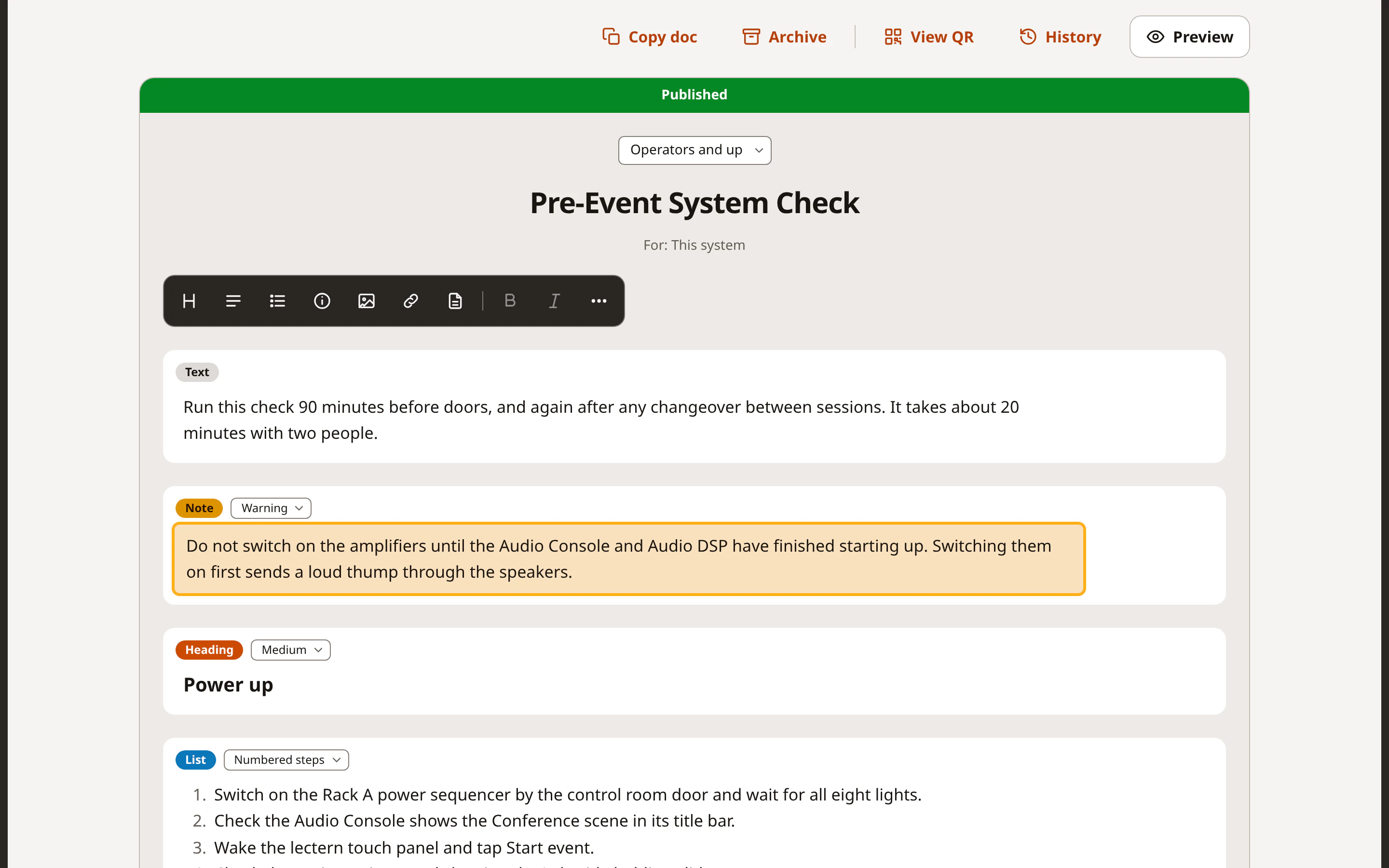
app.avdocs.app/lakeside-convention/main-auditorium/manage/docs/pre-event-system-check
The document editor: the doc's buttons, who can read it, the title, the block toolbar and the first blocks
The same document open in the editor on a tablet
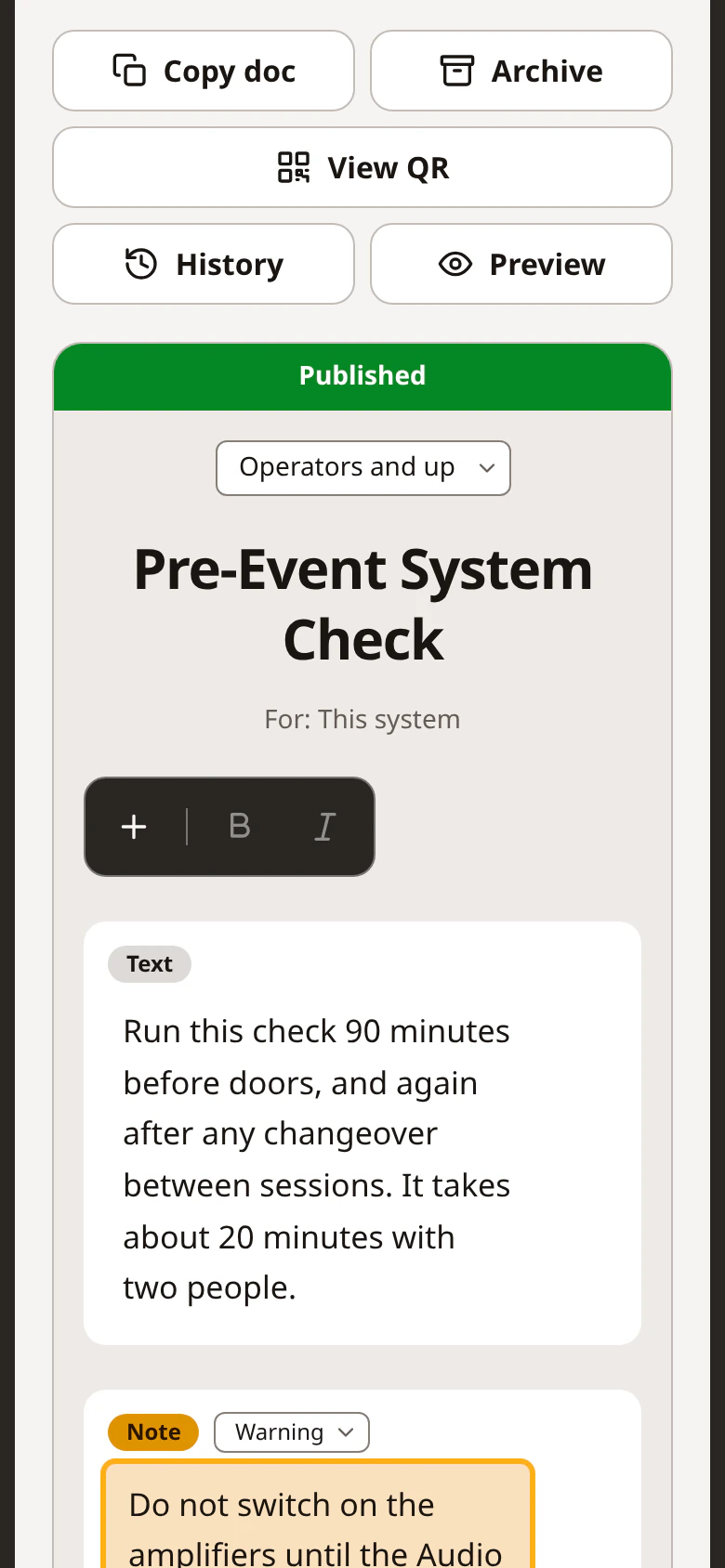
The same document open in the editor on a phone

Group related documents for easy access

One code, linked to many documents.
  • Select the docs, change the order
  • Each role sees only the docs it’s allowed
  • Dynamic contents: change them any time
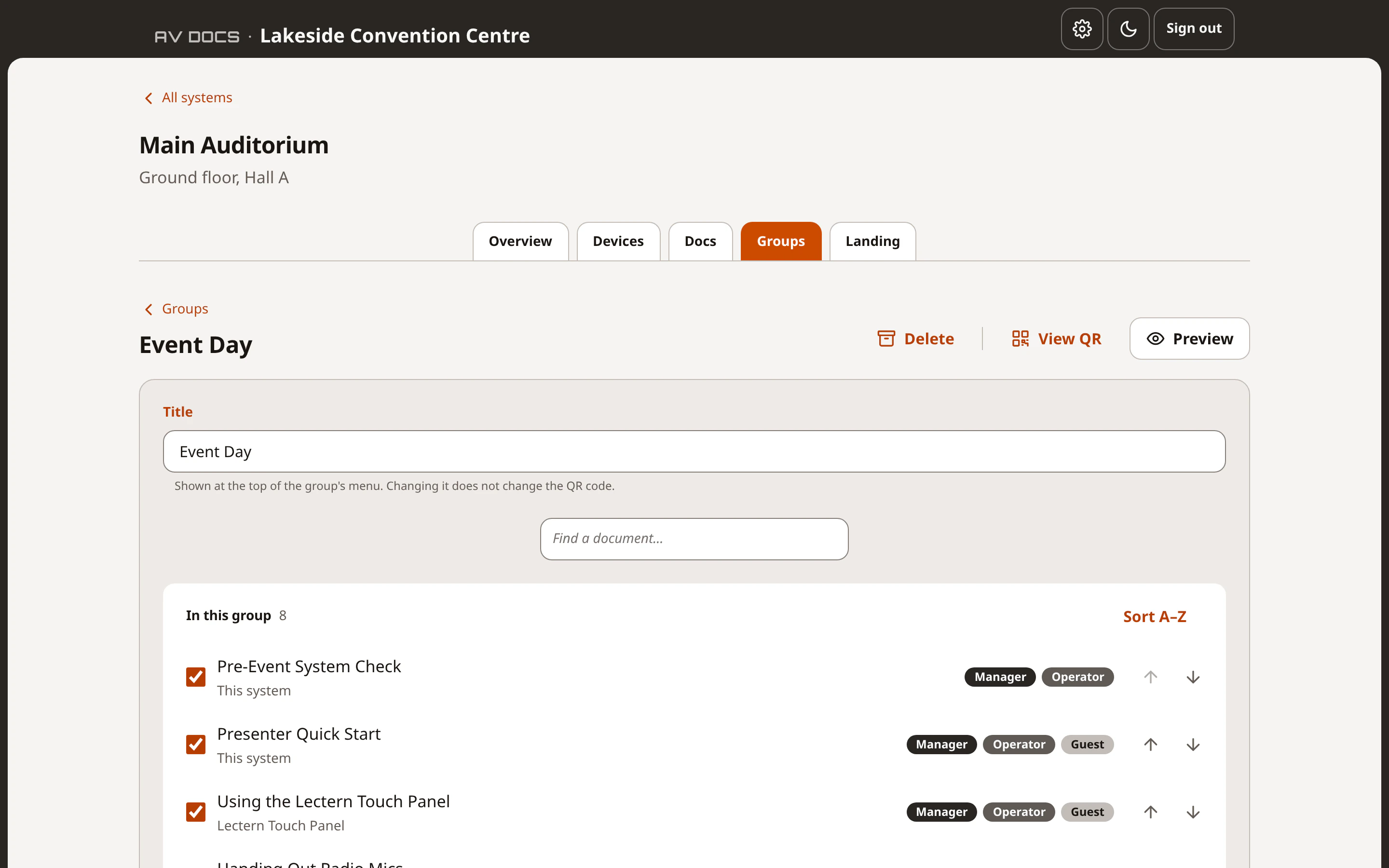
app.avdocs.app/lakeside-convention/main-auditorium/manage/groups/event-day
Building a document group by ticking documents and putting them in order
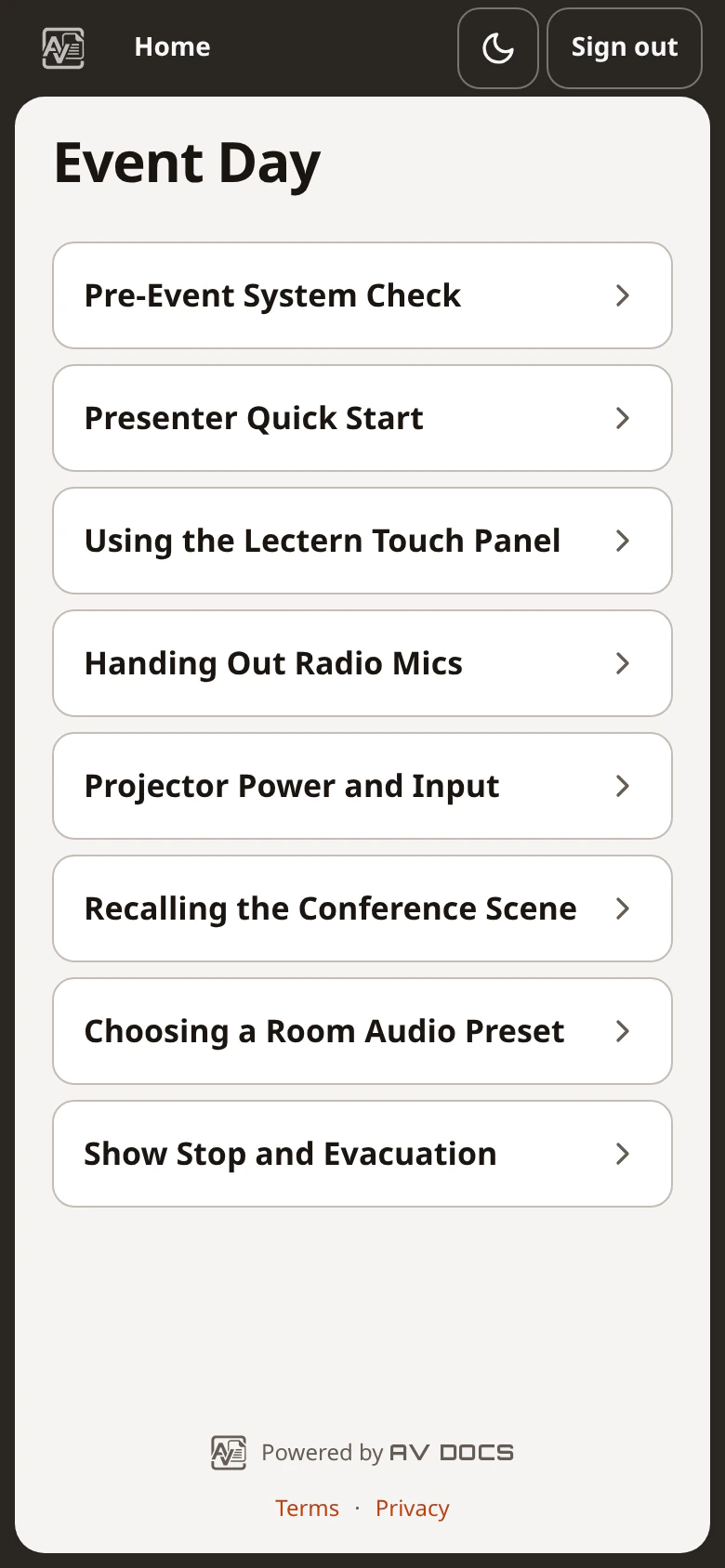
A group's menu on a phone, one code for every document in it

Print the QR codes

Every published doc and every group gets its own code.
  • Print any code you need, when you need it
  • Codes don’t change, even if the documents do
  • Adjustable code size and labels
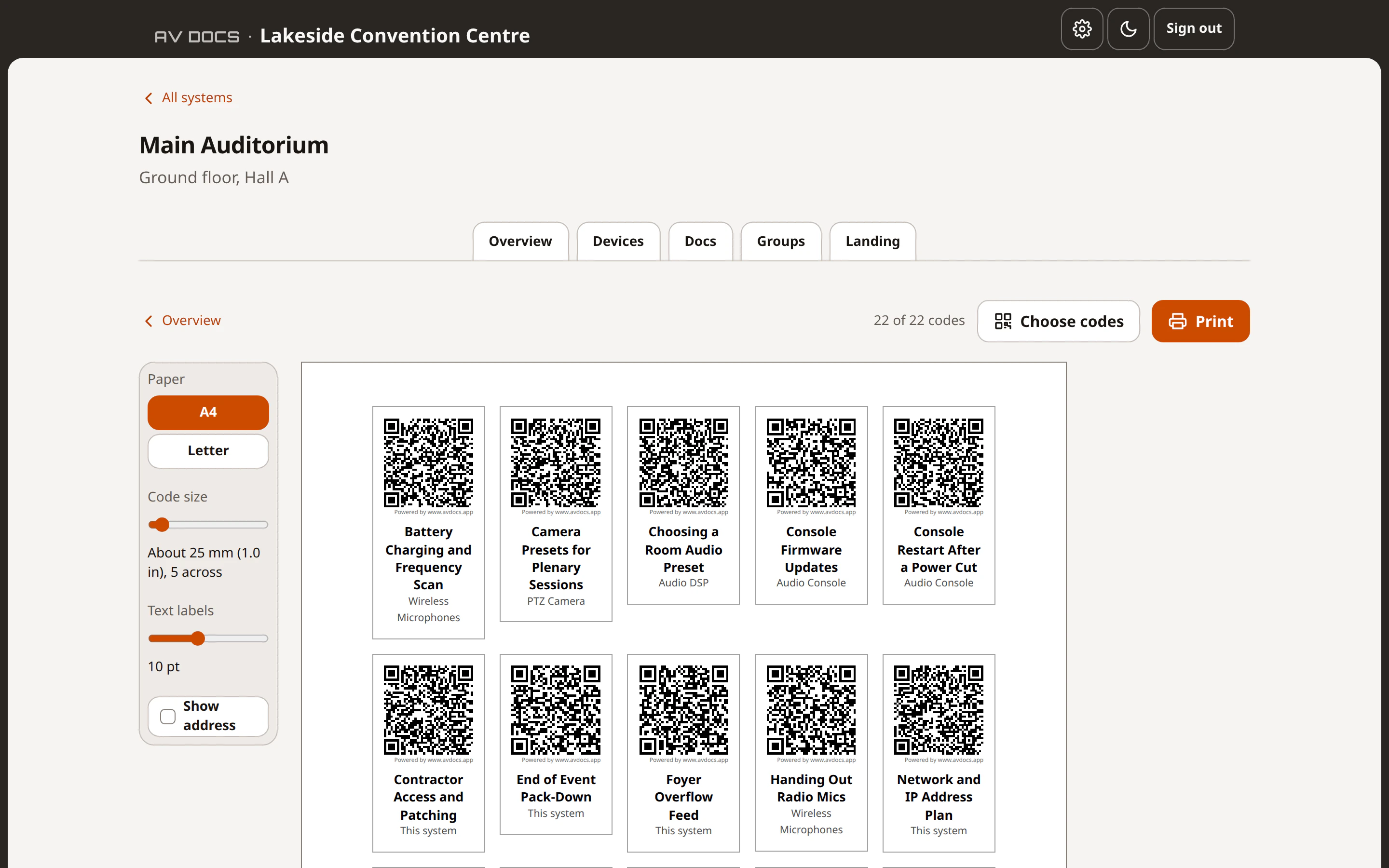
app.avdocs.app/lakeside-convention/main-auditorium/manage/qr
A printable sheet of QR codes for every document and group

Part 2 · The reader

Use it

No app to install. Point the camera. The doc opens.

Scan. Sign-in. Read.

Anyone can scan. Only staff get in.
  • Before sign-in: just your landing page
  • One password per role, not per person
  • Stays signed in for 12 hours
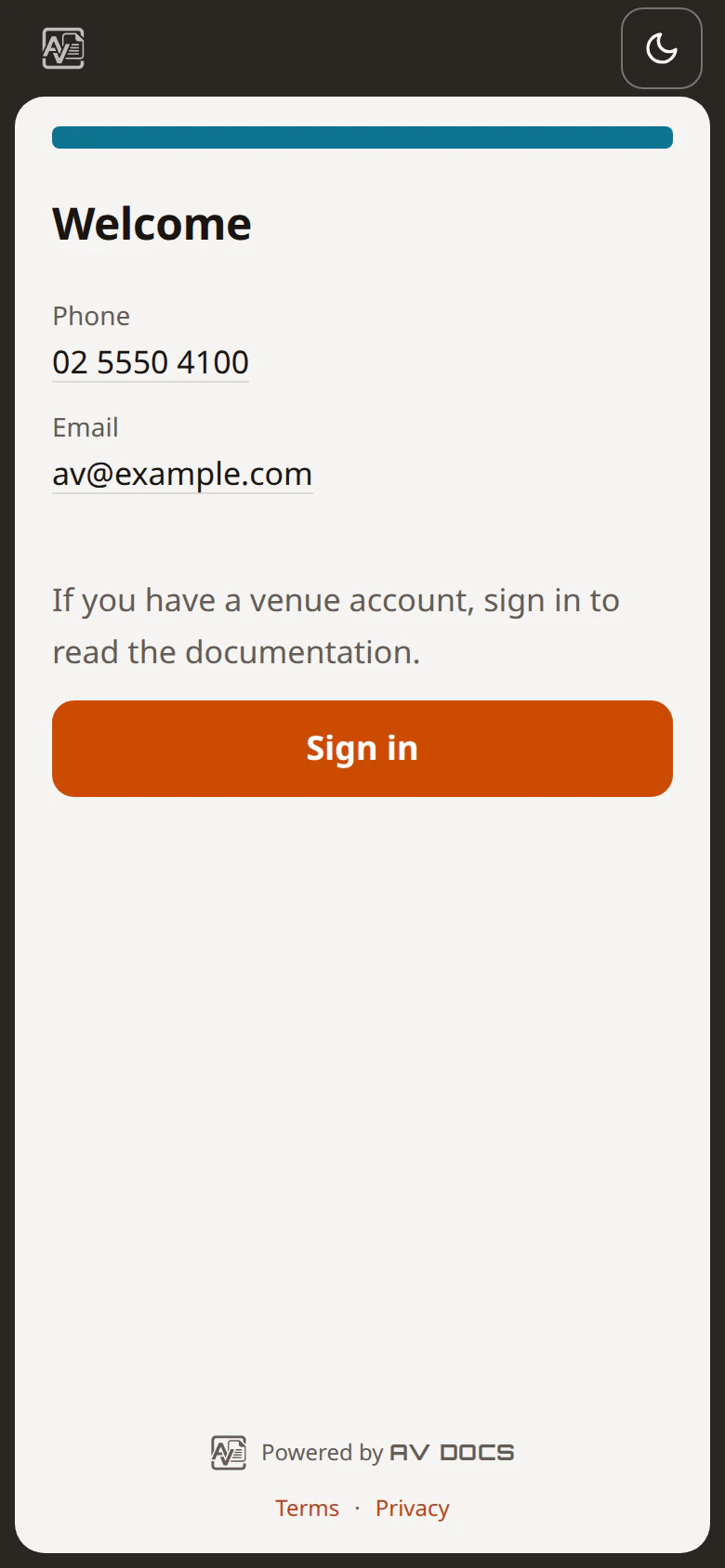
What anyone sees after scanning a code: the system's welcome page
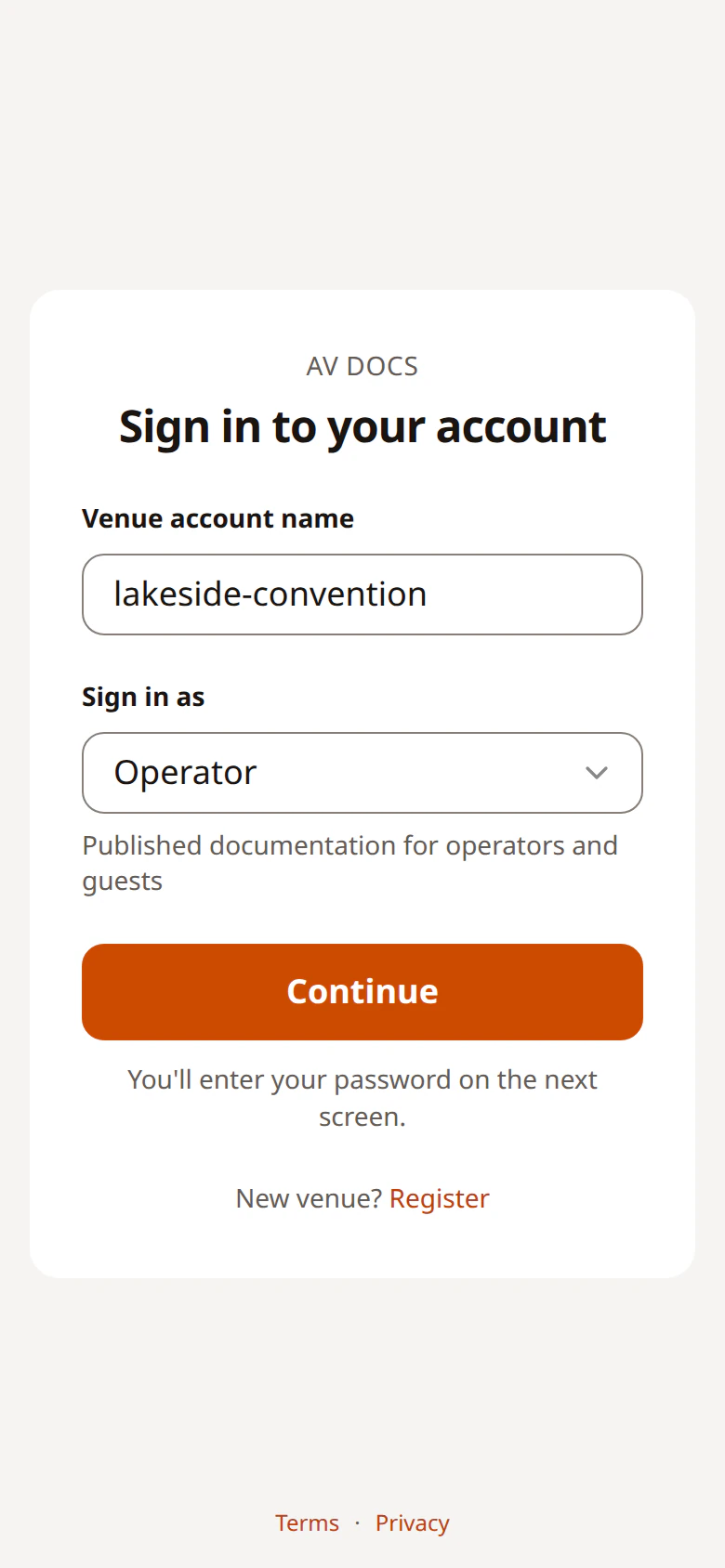
Signing in on a phone with the venue account name and a role
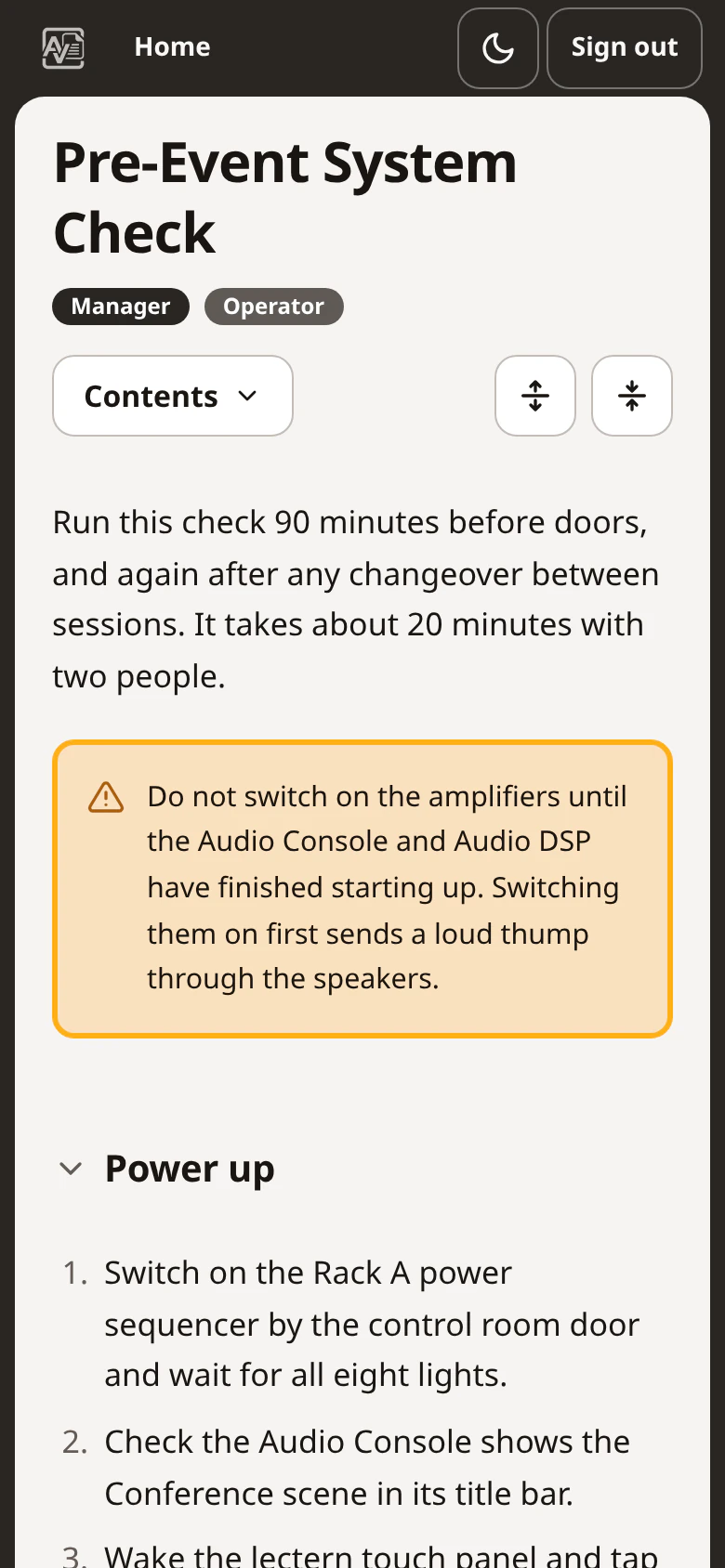
A document open on a phone: a warning, then the first section's numbered steps

All the information at your fingertips

Every detail, one tap away.

  • Numbered steps and warnings that stand out
  • Jump between related docs
  • Always the latest version
  • The answer, right where the problem is
  • Any phone or tablet, no app needed
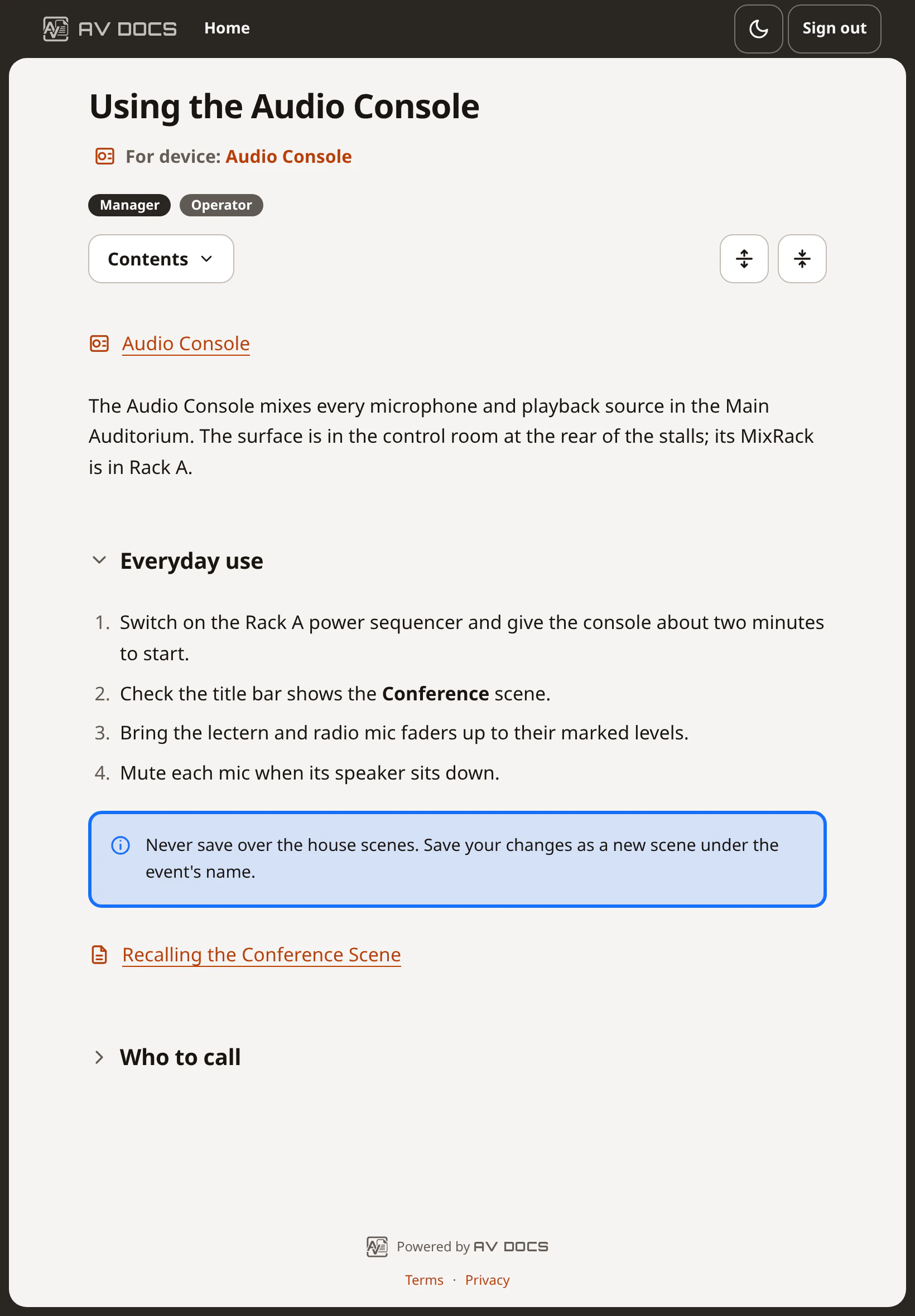
A device's document open on a tablet, with a link to the device at the top
A device's page on a phone: its details, network and ports

Three access levels

Same system. Three views.

Every doc has a minimum role. Control who has access to what.
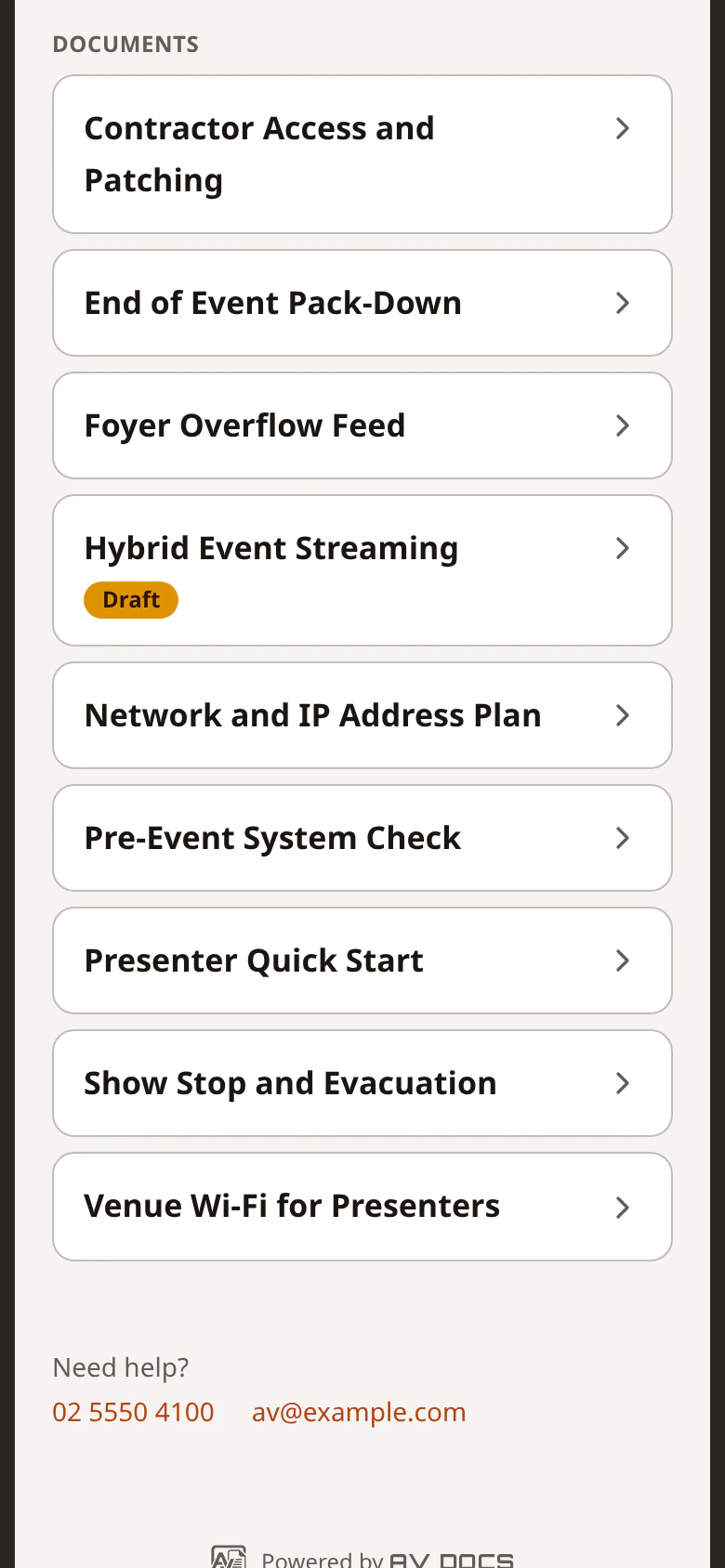
  • The system's documents as a Manager sees them: everything

    Manager

    Everything. Passwords and admin included.
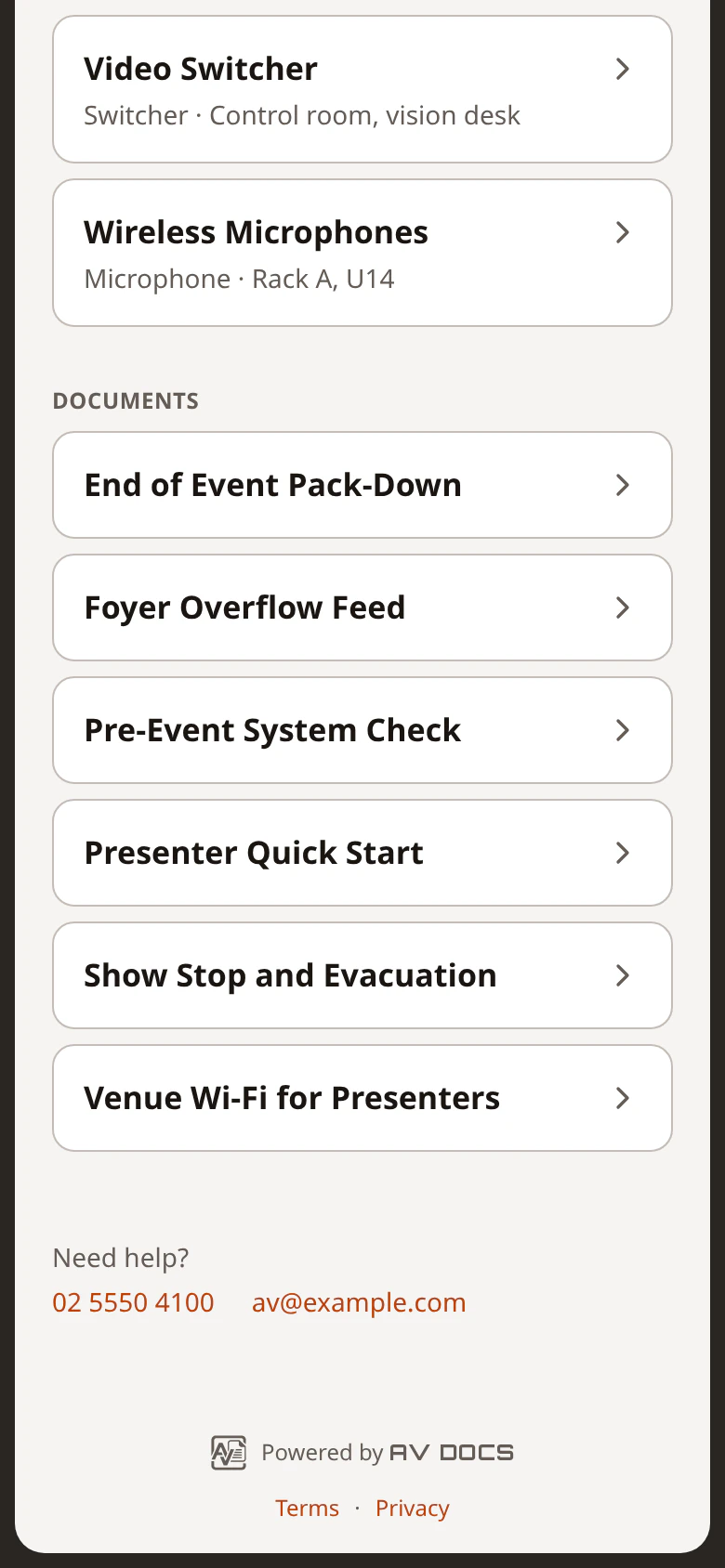
  • The system's documents as an Operator sees them: the technical set

    Operator

    Documentation for your team.
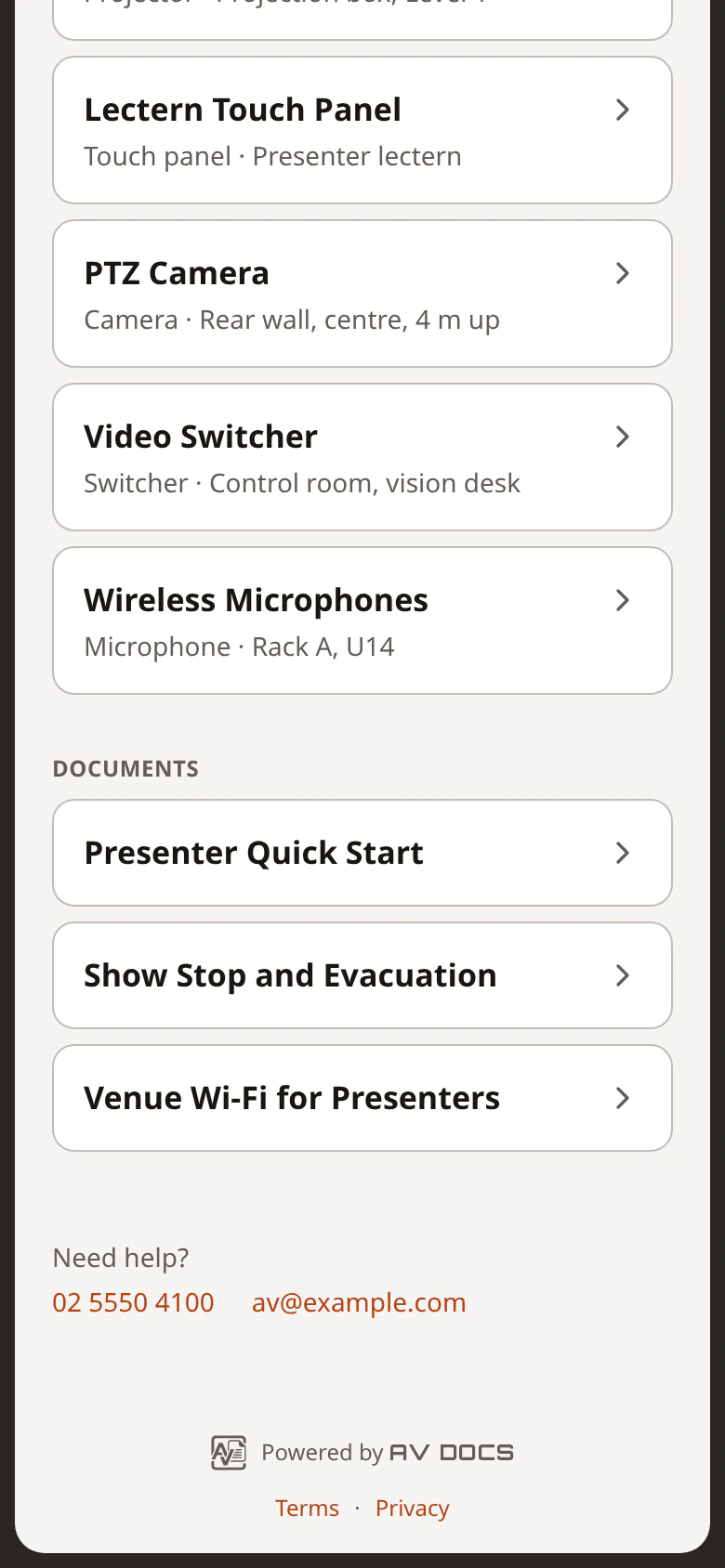
  • The system's documents as a Guest sees them: only the basics

    Guest

    Only what you choose to share.

Document it once. Find it every time.

Every plan, every feature. Priced in AUD, plus GST.